
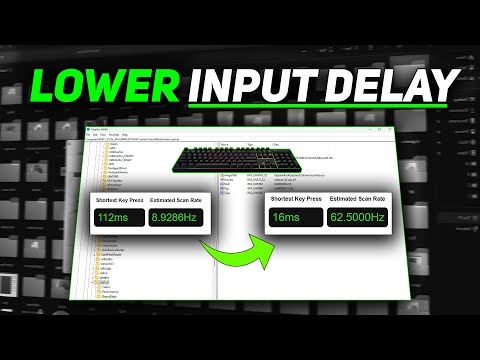
Tired of losing fights in Valorant or Fortnite because your keyboard lags behind your reactions?
This video shows how to measure, optimize, and fix keyboard input delay using real tweaks — no hardware upgrades needed.
We’ll start by testing your latency with Keyboard ResponseTester, then apply 10 proven Windows tweaks that improve input timing, stop USB power saving, and prioritize foreground tasks.
🎯 Perfect for FPS, rhythm games, or any setup needing faster key response.
🛠️ Commands & Paths Used:
STEP 1: Test Input Delay
→ Download & run: Keyboard ResponseTester
→ Record high/low/average delay before changes
STEP 2: Disable USB Selective Suspend
→ Control Panel , Power Options , Change plan settings , Advanced
→ USB settings , USB selective suspend setting → Disabled
→ CMD (Admin):
powercfg -duplicatescheme e9a42b02-d5df-448d-aa00-03f14749eb61
STEP 3: Change USB Port
→ Use rear motherboard USB ports (prefer USB 2.0)
→ Avoid USB hubs or monitor passthroughs
STEP 4: Disable Power Saving in Device Manager
→ Device Manager , Universal Serial Bus Controllers
→ USB Root Hub , Properties , Power Management , Uncheck “Allow computer to turn off device”
→ Repeat for HID Keyboard Device and all USB Input Devices
→ Also check under Human Interface Devices
STEP 5: Turn Off Filter Keys
→ Settings , Accessibility , Keyboard → Filter Keys: OFF
→ Control Panel , Keyboard , Set repeat delay to shortest
→ Disable Sticky, Toggle, and Slow Keys
STEP 6: Use Manufacturer Software
→ Open Logitech G Hub / Corsair iCUE / Razer Synapse
→ Set Polling Rate: 1000Hz or higher
→ Disable: Debounce Delay, Macro Assist, Input Smoothing
→ Disable device Sleep if available
STEP 7: Optional – ISLC
→ Download Intelligent Standby List Cleaner
→ Set resolution: 0.50ms
→ Click Start and leave running during gaming
→ Optional: Add to Task Scheduler for auto-launch
STEP 8: Retest
→ Reopen Keyboard ResponseTester
→ Compare delay before vs after tweaks
STEP 9: Boost Foreground Input with Regedit
→ Press Win+R → regedit
→ Path:
HKEY_LOCAL_MACHINESYSTEMCurrentControlSetControlPriorityControl
→ Create DWORD: Win32PrioritySeparation → Set to 26 (hex)
STEP 10: Stabilize USB Polling with Regedit
→ Path:
HKEY_LOCAL_MACHINESYSTEMCurrentControlSetServicesUSB
→ DWORD: EnIdleEndpointSupport → Set to 0
→ Bonus path:
HKEY_LOCAL_MACHINESYSTEMCurrentControlSetServicesHidUsb
→ DWORD: IdleEnabled → Set to 0
✅ Reboot after all changes
✅ Repeat test for final comparison
📈 Expect lower average delay, tighter key registration, and no freezes from USB sleep. Great for competitive gaming, editing, or any latency-sensitive task.
👍 Like if it helped, 🔔 Subscribe for more real Windows optimization — no fluff, just results.

Software guy can i ask my b650 motherboard have game mode in bios better for on or.off ?
TY
tyvm, I have sent this guide to the Razer team, hope that helps
Man my laptop keyboard runs well then after 2 or 3 gqmes it starts doing huge delay i play league of legends and for example i press q it happens 15 secs later this happened to me js after i came back from a vacation
step 2, 3 ,4 ,5 : from 60ms to 6 ms